How to Control Your Camera from an Apple Watch (Canon, Sony & Fujifilm)
By Ian Middleton · Travel & landscape photographer
Shutter+ lets you trigger your camera, check live view, adjust exposure, and run timers from an Apple Watch. Your iPhone handles the camera connection over Wi-Fi or USB, depending on the model, while the Watch communicates with your iPhone.
For self-portraits and group photos, this means you can check the framing and take the shot without holding your phone. With USB, the iPhone stays beside the camera, connected by a cable, while you control it from your Watch within range of the iPhone.
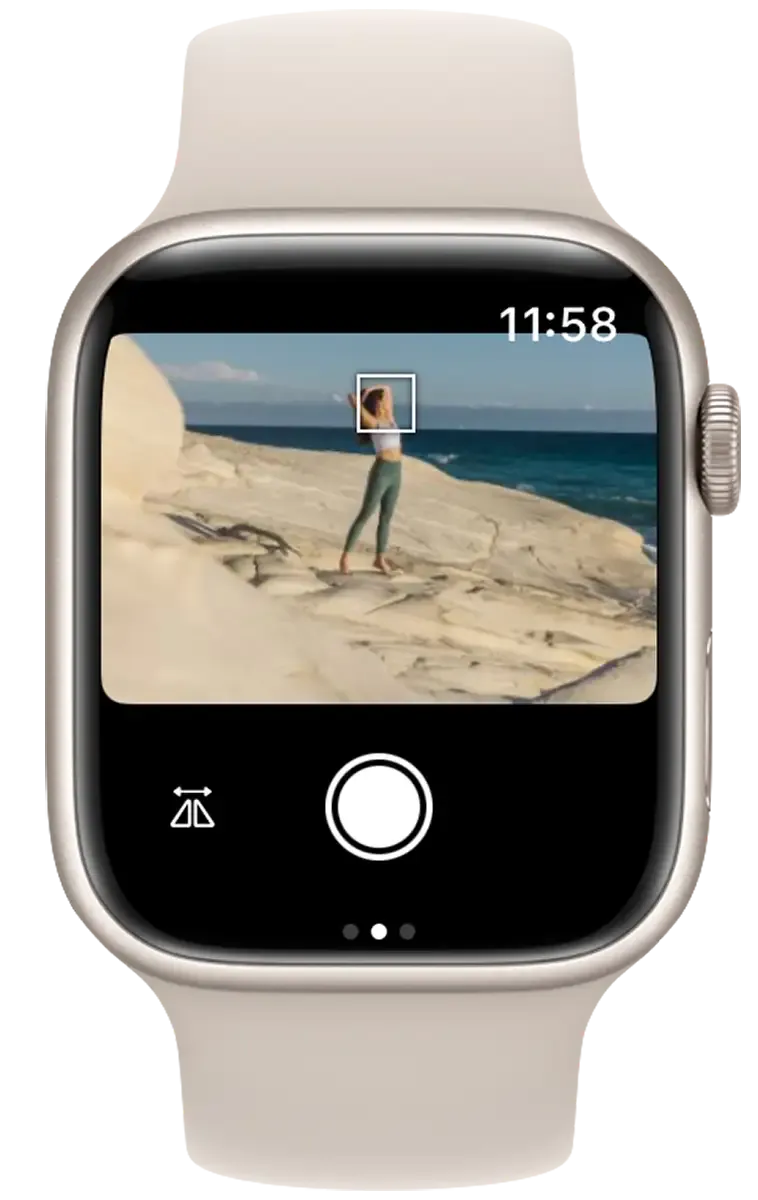
What you can control
- Photos and video: Trigger the shutter or start and stop recording.
- Live view and focus: Check the camera feed and tap to set focus.
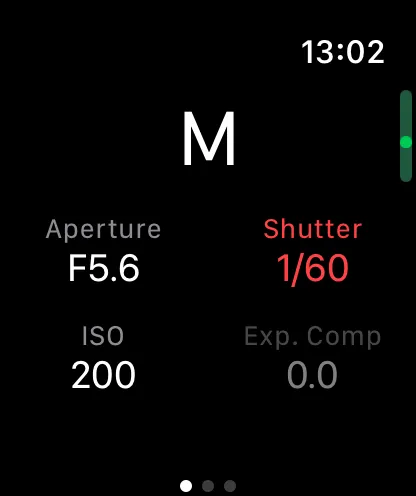
- Exposure: Adjust mode, aperture, shutter speed, ISO, and exposure compensation using the Digital Crown.
- Timers and bracketing: Configure the self-timer, intervalometer, BULB timer, and exposure bracketing. Monitor progress or stop a sequence from the Watch.
Available controls depend on your camera. Check your model on the supported cameras page.
What you need
- An iPhone connected to your camera through Shutter+, using Wi-Fi or USB. USB support varies by model; check the supported cameras page before choosing a cable or adapter.
- An Apple Watch paired and connected to that iPhone, with the Shutter+ Watch app installed.
The iPhone must stay connected to both the camera and the Watch throughout the shoot. The Watch cannot connect directly to the camera.
How to set it up
- Install Shutter+ for your camera brand (Canon, Sony, or Fujifilm) on your iPhone. The companion app should install on your Watch automatically. If it doesn’t appear, open the Apple Watch app on your iPhone and check My Watch for installation progress. Keeping the Watch on its charger can speed up installation.
- Connect your iPhone to your camera using Wi-Fi or USB. Follow the wireless connection guide or the USB connection guide, depending on your camera’s supported connection types.
- Open Shutter+ on your Apple Watch. If it shows “Camera not connected,” confirm the connection in the iPhone app, then tap Retry on the Watch.
- Tap the shutter button on the Watch to take a photo.
Using the Watch controls
Triggering the shutter
In photo mode, tap the shutter button to take a shot. A haptic tap confirms the capture. In video mode, tap to start recording and tap again to stop. A timer shows the elapsed recording time.
Checking live view and setting focus
The Watch shows a smaller, lower-resolution camera feed with a slight delay compared to the iPhone. Use it to check your position in the frame, and tap the live view to set focus. The iPhone’s larger screen is better suited to checking fine detail.
Adjusting exposure
Tap an exposure setting, then turn the Digital Crown to choose a value. You can adjust aperture, shutter speed, ISO, exposure compensation, and exposure mode. The Crown gives haptic clicks as you move through the values.
Running timers and intervalometers
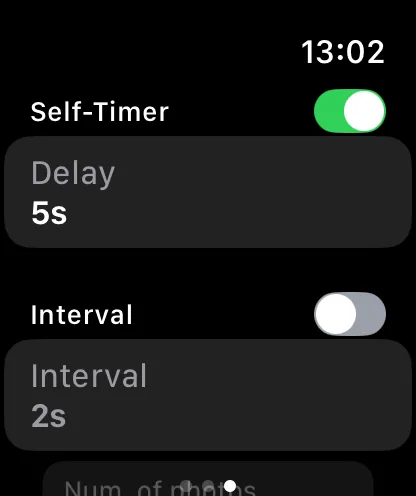
Configure the self-timer, intervalometer, BULB timer, or exposure bracketing from the Watch. Settings include delay, interval, shot count, exposure duration, and EV step, depending on the selected automation and camera.
During an intervalometer sequence, the Watch shows the current shot number, total shots, and a countdown to the next frame. You can stop the sequence from the Watch.
Bluetooth and live view performance
When your iPhone connects to the camera over 2.4 GHz Wi-Fi, Bluetooth activity can slow down live view. Keep Bluetooth enabled for the Watch connection. If you use Shutter+‘s Bluetooth shortcut to disable it when connecting to the camera, leave that shortcut off while using the Watch.
If your camera supports USB, connecting it to the iPhone by cable avoids this Wi-Fi interference while keeping Bluetooth available for the Watch. A supported 5 GHz Wi-Fi connection can also help.
Canon, Sony, and Fujifilm support
The Watch app provides the same interface across the three versions of Shutter+. Available camera controls, automations, and connection methods vary by model. Use the supported cameras page to check your camera, including whether it supports USB.
When Watch control is useful
Self-portraits and solo travel
Set the camera on a tripod, walk into frame, and check your position on the Watch before taking the shot. Use the intervalometer if you want several frames to choose from.
Group photos
Once everyone is in position and looking at the camera, trigger the shutter from your wrist. You can stay in the group and take another shot without returning to the camera.
Long exposures and astrophotography
Monitor a BULB exposure or intervalometer sequence without touching the camera or taking out your phone. Stay within range of the iPhone, and keep its connection to the camera active.
Product and macro photography
Leave the iPhone mounted beside the camera and use the Watch to trigger shots while you adjust the subject or lighting. A USB connection can suit this fixed setup if your camera supports it.
Troubleshooting
- “Camera not connected”: Check the camera connection in the iPhone app. For Wi-Fi, confirm the phone is connected to the camera’s network. For USB, check the cable and follow the USB troubleshooting steps. Then tap Retry on the Watch.
- “Phone not connected”: Check that the Watch and iPhone are connected and within range. Make sure Bluetooth is enabled on the iPhone.
- Slow live view: If the camera uses 2.4 GHz Wi-Fi, try moving the iPhone closer to it or using USB or 5 GHz Wi-Fi if supported. Keep Bluetooth enabled while using the Watch.
- Watch app missing: Open the Apple Watch app on your iPhone and check installation progress under My Watch. Put the Watch on its charger while it installs.
FAQ
Do I need my iPhone to use the Apple Watch as a camera remote?
Yes. The Watch communicates with the iPhone app, which manages the camera connection. Both connections must remain active.
Can I use the Watch when my camera is connected by USB?
Yes, if your camera supports USB in Shutter+. Connect the camera to your iPhone by cable, then open Shutter+ on the Watch. The Watch still communicates wirelessly with the iPhone. Check USB support for your model on the supported cameras page.
Can I see what my camera sees on the Watch?
Yes. The Watch displays live view, and you can tap it to set focus on supported cameras.
Will using the Watch slow down live view?
Bluetooth can affect performance when the iPhone-to-camera connection uses 2.4 GHz Wi-Fi. USB avoids this Wi-Fi interference; 5 GHz Wi-Fi can also help if your camera supports it.
Can I configure and run a timer from the Watch?
Yes. You can configure the self-timer, intervalometer, BULB timer, and exposure bracketing, subject to camera support. You can also monitor progress and stop a running sequence. Your iPhone must remain connected.
Does my Shutter+ purchase include the Watch app?
Yes. A Shutter+ licence covers iPhone, iPad, and Apple Watch on the same Apple ID, or through Family Sharing.
Can I adjust aperture and ISO from the Watch?
Yes, on supported cameras. Tap the setting and turn the Digital Crown to change it. Shutter speed, exposure compensation, and exposure mode are also available.
Related Shutter+ guides
- Apple Watch user guide — controls and screenshots.
- Wireless connection guide — connect your iPhone to the camera over Wi-Fi.
- USB connection guide — cables, adapters, and setup instructions.
- Intervalometer guide — configure interval shooting.